Your night, on your stream, as it happens. The overlay reads the chat log the game already writes and turns it into browser sources for OBS or Streamlabs Desktop.
A set of widgets, each its own source, or one that holds the lot:
- Realm points, RP/hour, deaths and how far you have walked tonight
- Combat: damage, DPS, hit rate, and who you fought most
- This fight, on its own: what it was worth in RP, damage dealt and taken, kills, how long it ran
- PvE: XP/hour, coin, mob kills, level and zone
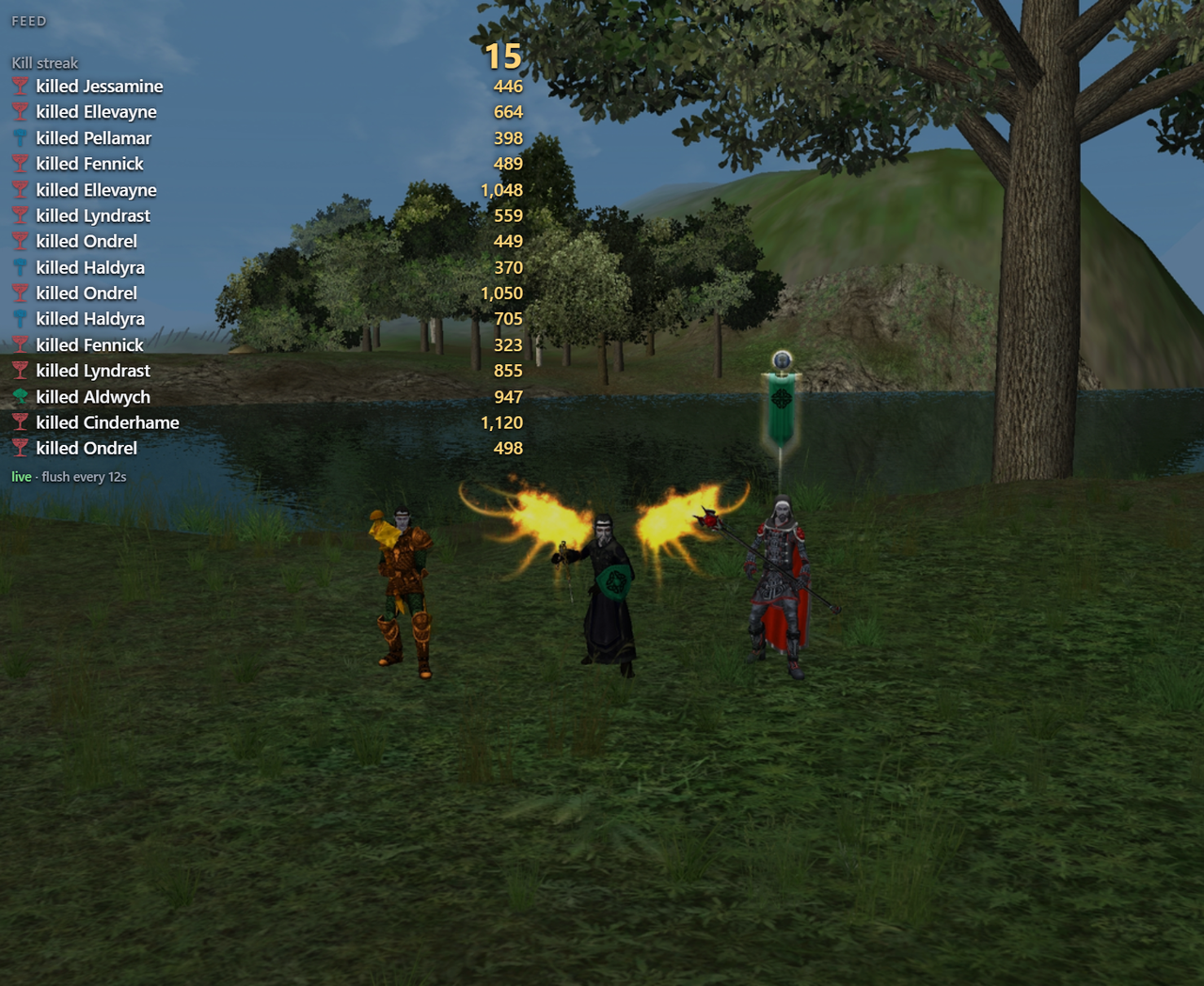
- Kill feed: kills as they land, with the RP on the row and your streak
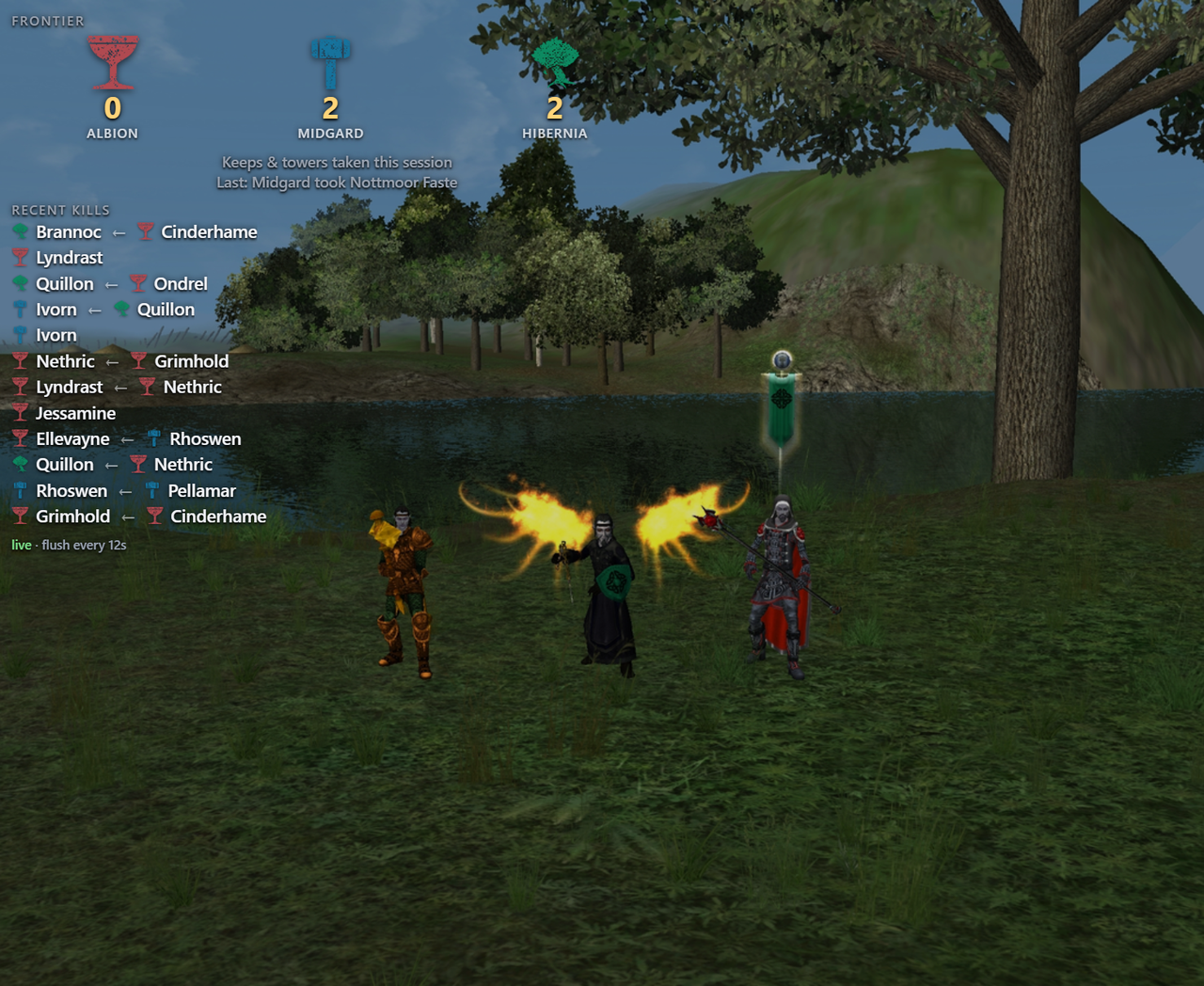
- Realm, and a three-realm Frontier scoreboard: captures, hot zone, who is winning
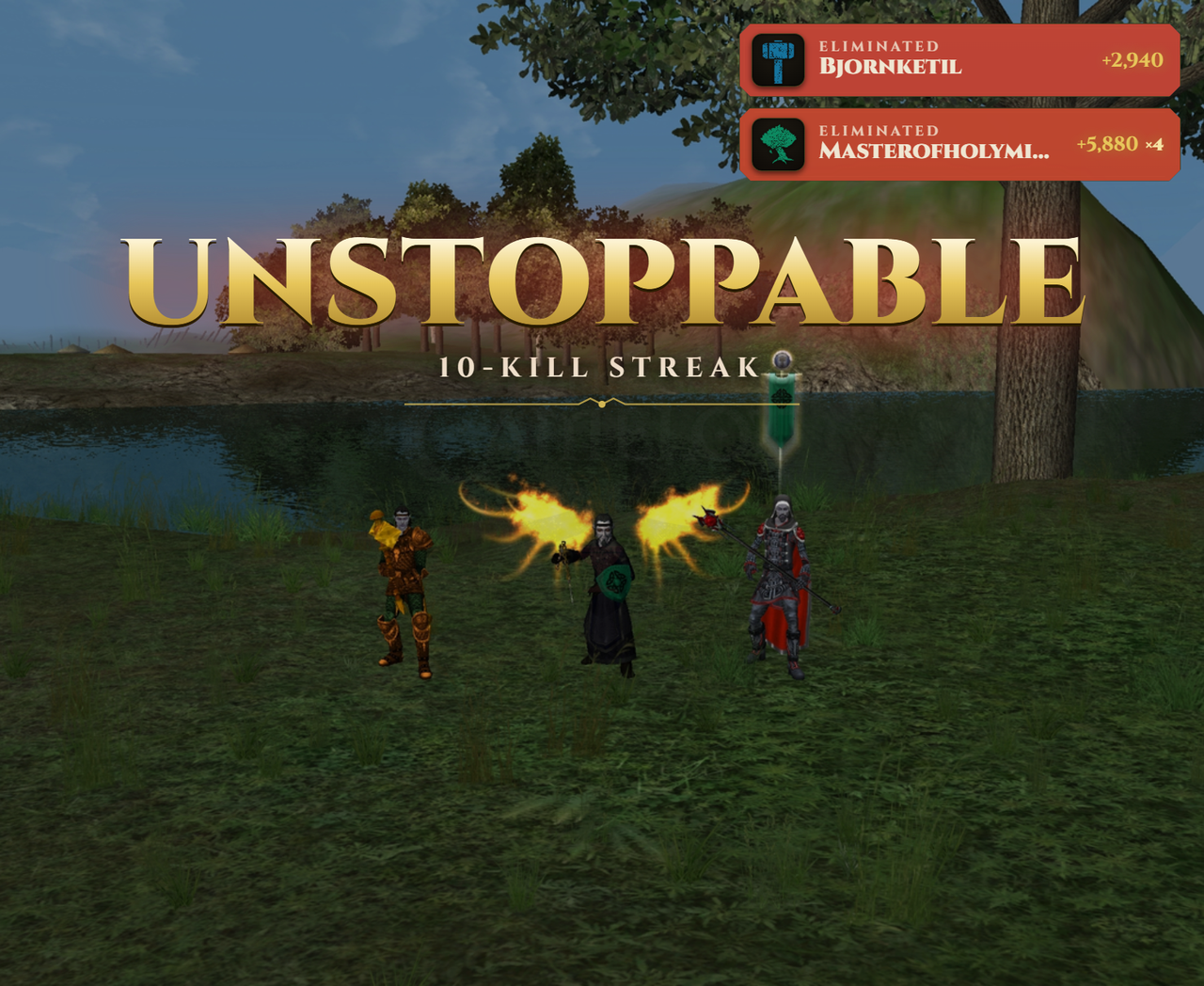
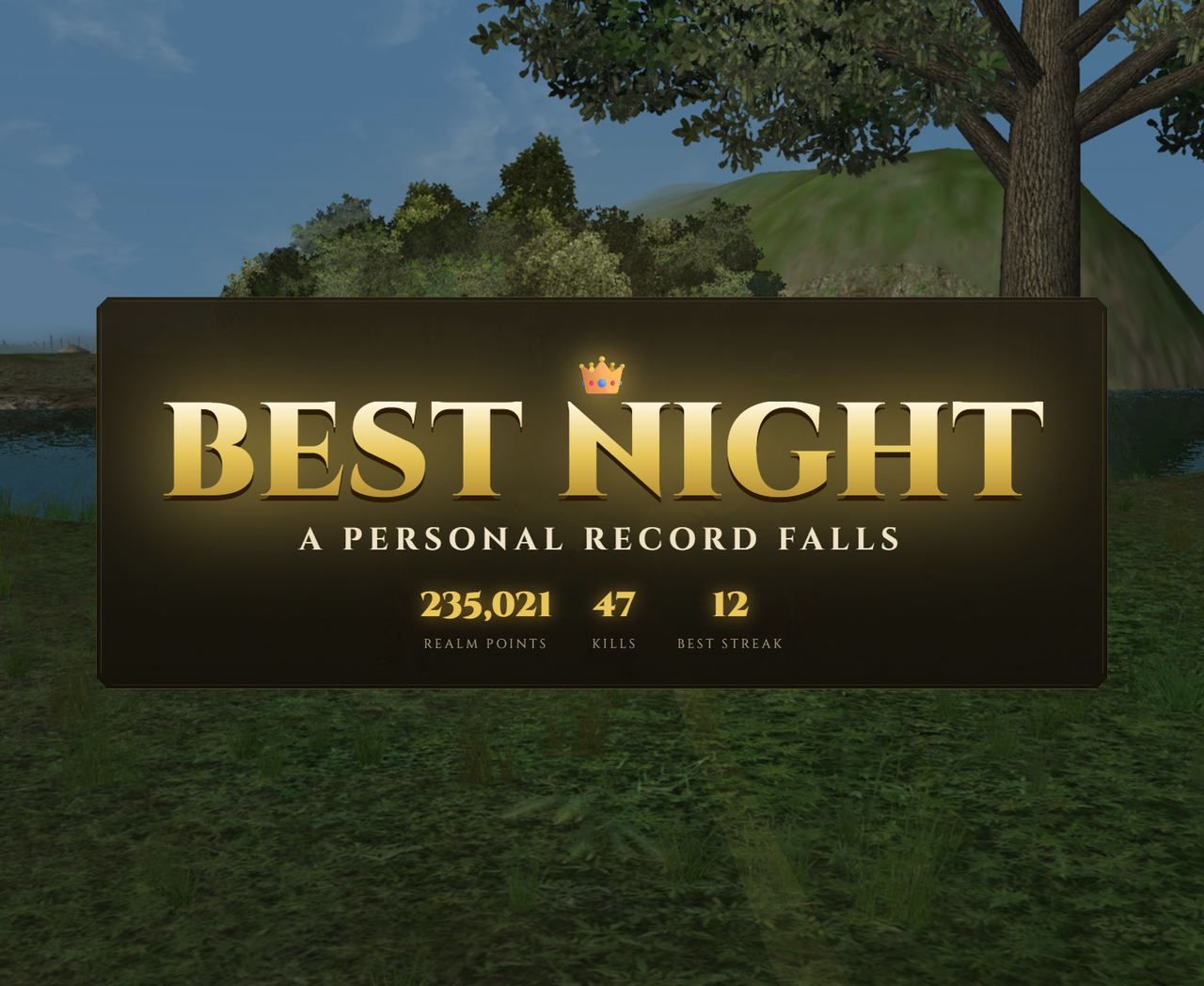
- Callouts: big animated, realm-coloured call-outs for kills, streaks, a rank, a keep taken, your best night

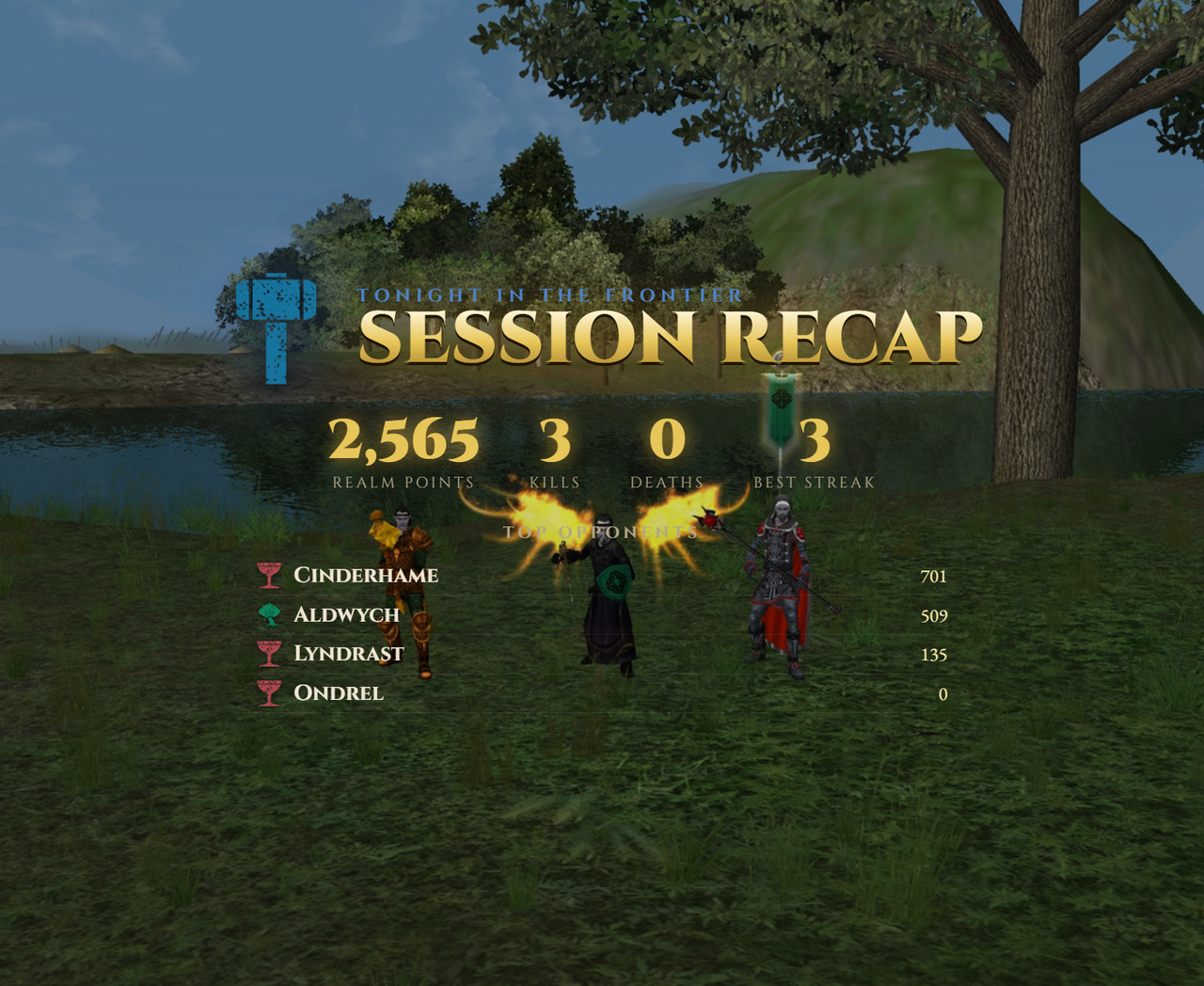
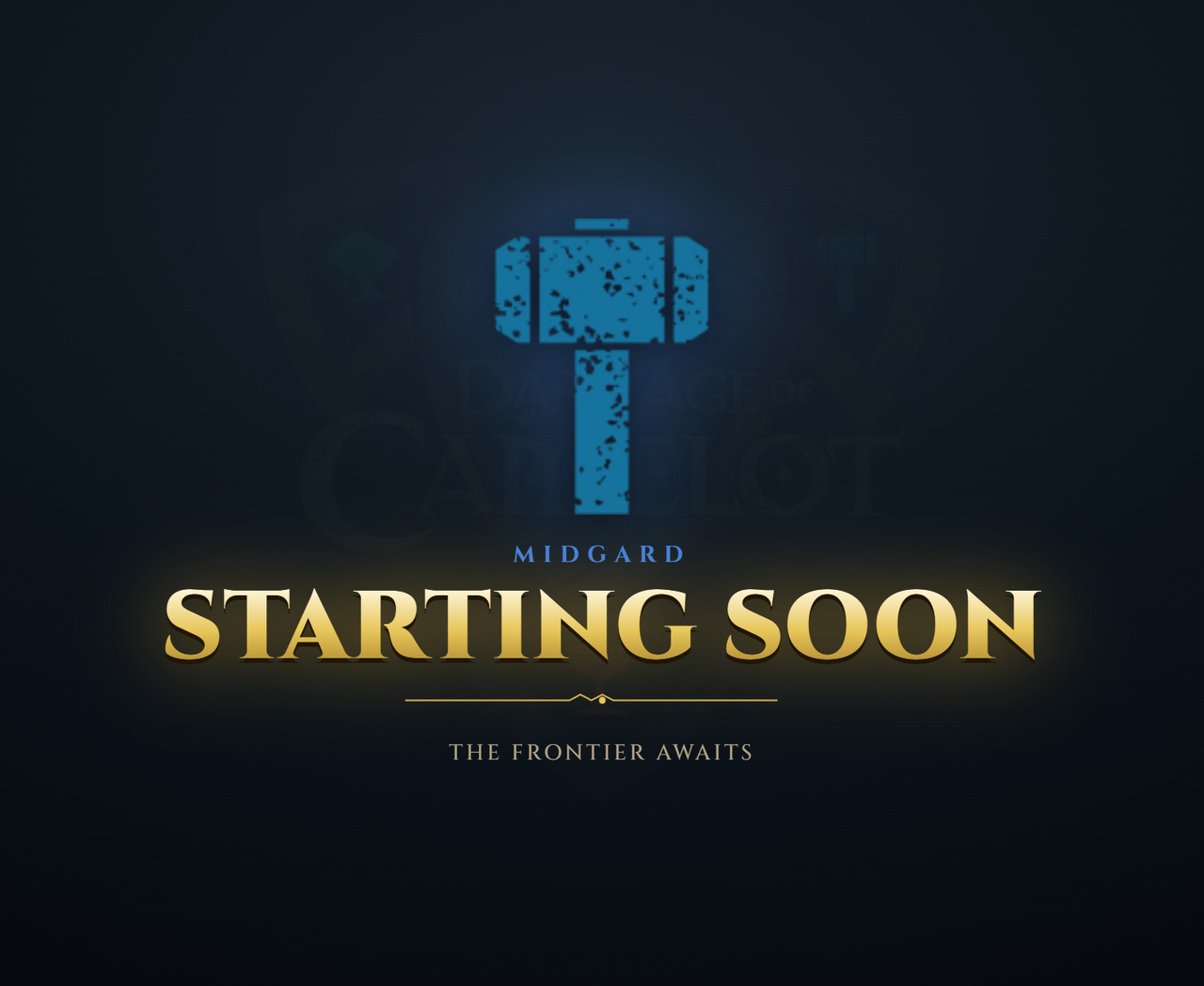
- Scene cards (Starting Soon, BRB…) and an end-of-night recap, in your realm’s colours, distance walked included
- Everything, in one source
An alert flashes up the moments worth reacting to: a realm rank crossed, ten kills without dying, your best night beaten. It keeps a record of past evenings, can write the big moments out as VOD chapter markers, and sits in the notification area with a keyboard shortcut for the on-screen version.
Free and MIT licensed. Windows, built for Live (the official Broadsword servers), patch 1.130a.
New in v0.6
- How far you walked. This session’s distance, on the realm-points, combat and PvE widgets, the on-screen HUD, and the end-of-night recap card. Miles or kilometres, chosen from the viewer’s own browser locale. It needs the real-time log: the chat log states distance nowhere, so the flusher reads the game’s position twice a second and adds up the difference. Ports, region lines and releases are not counted as walking. Finished evenings keep their distance in the history file.
!walkedin the Twitch bot, so the chat count goes from six commands to seven.- Fix: the test client is now recognised. Pendragon runs
tgame.dllrather thangame.dll, and every client finder matched the name literally, so the overlay could not see a test client at all: no character, no zone, no rank, no real-time log.
New in v0.5
- The fight you are in, as its own source. Session totals only climb, so
they cannot answer “was that one any good”.
/w/fightanswers it: damage, DPS, damage taken, kills, deaths, how long it ran, and what it was worth in realm points. The heading says Fight while it is happening and Last fight once it has ended, and it stays on screen instead of blanking to zeroes. The combat widget still carries the same rows, and you can untick them there. - Two new rows: deaths in the fight, and the realm points it earned, base and bonus, your kills and the group’s alike.
New in v0.4
- Frontier Callouts, drawn in your realm’s colour: kills, streaks, a rank crossed, a keep taken, a death, and a best night. With the game’s crests and medieval sounds.
- A three-realm scoreboard, so the frontier reads as a contest rather than a number.
- Scene cards: six presets (Starting Soon, BRB, Ending, Chatting, Intermission, Raid), and you can rewrite the wording.
- An end-of-night recap card for the numbers you finished on.
- Crests on the kill feed and the opponents board.
- Per-surface fonts, from your system or from Google Fonts.
- Your own art and sounds: drop files into
images/andsounds/next tooverlay.exeand they replace the built-in ones.
Download
v0.6.0, daoc-overlay-v0.6.0-windows-amd64.zip, 3.9 MB, Windows 64-bit.
03d204e793b848abbb7988817bc618e833b35eb6fb1e00758ca436f37043a50a  daoc-overlay-v0.6.0-windows-amd64.zip
4a3d04f79c610d9659020ab8511c5af2f2e5e1ae66a3b547e31e16627b5e31ff  overlay.exe
Those two lines let you check the file arrived in one piece. See checking the download.
Install it
Unzip it anywhere, your Desktop is fine, and double-click overlay.exe. There
is no installer, and what it writes it writes beside itself: its settings, a
line per evening for the history, and the chapter markers file when you turn
those on.
Windows interrupts the first run twice, and both are normal:
“Windows protected your PC”. Click More info, then Run anyway. Windows shows that for any program without a paid signing certificate, and a free overlay does not have one.
“Allow this app through the firewall?”. Tick Private networks. You only need this if your streaming program runs on a second PC. On one PC you can decline it and everything still works.
Turn the log on, all the way on
Two steps in game, and the second one is the one everybody misses.
- Type
/chatlogon its own. That starts the log, and it stays on across sessions. (/chatlog somenamewrites somewhere else instead. If you use that, put its path in the chat.log box on the control panel.) - Right-click your chat tab → Messages & Channels → tick all 16 Message Types. With boxes unticked, whole categories of line are never written, so the overlay cannot count what it never sees. This is the number one cause of “it shows zeroes”.
overlay.exe opens a page that tells you which of those is wrong, in plain
words, while you are still in game.
Add the widgets
overlay.exe prints the addresses. Add a Browser Source per widget, in OBS
or in Streamlabs Desktop:
http://localhost:8752/w/all         everything at once
http://localhost:8752/w/rp          realm points, RP/hour, deaths, distance walked
http://localhost:8752/w/combat      damage, DPS, hit rate, top opponents
http://localhost:8752/w/fight       the fight you are in, or the one that just ended
http://localhost:8752/w/pve         XP/hour, coin, mob kills, level, zone
http://localhost:8752/w/killfeed    kills as they land, RP on the row, streak
http://localhost:8752/w/realm       frontier activity, hot zone, captures
http://localhost:8752/w/callouts    animated stream callouts in your realm's colour
http://localhost:8752/w/frontier    three-realm scoreboard: each realm's crest and keeps taken
http://localhost:8752/w/standby     full-screen scene card (Starting Soon / BRB)
http://localhost:8752/w/recap       end-of-night card: your night's numbers and top opponents
Callouts is the flashy layer: drop it over your whole scene
and it flashes a banner on each kill, an escalating streak call, a rank or
level plaque, a keep-capture banner, and a “best night” takeover, each drawn
in the right realm’s colour, read from the character you are on (Albion red,
Midgard blue, Hibernia green). Captures use the capturing realm’s colour
straight from the log. If you tick Colour callouts by the enemy’s realm on
the control panel, a kill also shows the victim’s realm swallowed by yours.
That asks the Herald what class the victim is, so it is off until you turn it
on. Add ?demo=1 to the address to watch a sample run while you place the
source in OBS.
The callouts, scoreboard and cards use the game’s realm emblems. Prefer your
own? Make an images folder next to overlay.exe and drop in a PNG named to
match: emblem-cup.png (Albion), emblem-hammer.png (Midgard),
emblem-tree.png (Hibernia), daoc-logo.png (the watermark), then refresh the
source. Anything you leave out keeps the built-in art.
Every widget is transparent and sizes itself to the browser source. They update themselves: no refreshing, no scripts.
If your streaming program runs on a second PC, tick Let other machines on
my network reach the widgets on the control panel and restart the overlay, then
use the address it prints instead of localhost.
Make it yours
Open http://localhost:8752/control to pick what each widget shows, set the
colours, font and text size, and place the on-screen version. Colours, font and
size are one setting for the widgets and the on-screen version together, and a
widget already added picks a change up on its own.
The extras
Three things the overlay can do beyond showing numbers. All three are off until you switch them on, from that same panel.
Drive your stream from the log. Save a replay after a multi-kill, switch scene on a death, flash an alert on a milestone. Pick OBS and paste the password from Tools, WebSocket Server Settings, or pick Streamlabs Desktop and paste the API token from Settings, Remote Control, once you have switched remote control on there.
Answer your Twitch chat. Seven commands, and you tick the ones you want:
!run, the session so far: realm points, time played, RP/hour, kills, deaths and your best streak!rp, tonight’s realm points, your lifetime total, your rank, and how far the next rank is!kills, kills, deaths, your current and best streak, and who you fought most!dps, damage per second, damage dealt and taken, hit rate and healing!pve, level, XP/hour, coin and zone!best, tonight measured against your best evening on record!walked, how far you have walked tonight, in miles or kilometres
! is the prefix unless you change it, and the same command answers at most
once every twenty seconds. All but !best are on once you switch the bot on.
Steadier numbers, and your real rank. That one is the flusher, below.
The flusher
The game saves your chat log a chunk at a time, about 4 KB, so on a quiet evening your numbers arrive in bursts minutes apart. Turn the flusher on from the control panel and they move steadily instead.
It also gets your lifetime realm points and your realm rank, which the log does
not contain. Neither does /stats: read its first line and it says this
session. With the flusher running, both come straight from the game, so !rp
names your rank, the progress bar is right, and crossing a rank flashes an
alert. Everything earned tonight is added from the log.
It is optional, and the overlay says on screen whether it is running. Without it, you can tick Lifetime realm points for a fallback: it asks the Camelot Herald, the game’s own public record, where your total stood when you last logged off. It is off until you tick the box, and it sends one character name and one server name, the same as looking a character up on the Herald site.
For what the flusher does to the game, and why it asks for administrator rights, see under the hood.
Before you go live
START HERE.txt in the zip ends with a six-check list to run before each
stream: relaunch the overlay so tonight’s numbers start at zero, check the
health page says Working, check the flusher is running, refresh the browser
sources so they are not serving a cached page, read the status lights on the
panel rather than assuming a Twitch token is still good, and keep the control
panel off screen: the token and password boxes are masked, but the page shows
the path to your chat.log, which usually has your Windows username in it, and
the character it is following.
Privacy
Nothing from your session leaves your PC unless you switch it on. What can be switched on: what it says to OBS or Streamlabs Desktop on your own network, what it says in your own Twitch chat, the Herald lookup above, and, for the callouts, colouring a kill by the enemy’s realm, which asks that same public Herald what class each victim is. That last one sends enemy character names (just a name, on your cluster); the answers live only in memory and are never written to disk, because a character can be renamed.
One thing is not a tickbox: the widgets get their lettering from Google Fonts. The callouts layer asks for the three fonts it is drawn in every time the source loads, and any other widget asks only if you have picked a Google font for it, so a font your own machine already has keeps that one local. It is the browser source asking Google for a stylesheet and the font files, the same request any web page using them makes, and nothing from your log or your session goes with it.
There is no telemetry, no update check, and no analytics. Your chat log is read, never uploaded, never copied.
Under the hood
The detail, for anyone who wants it.
What the overlay does. It reads chat.log and serves a web page on your own
machine. That half never touches the game.
What the flusher does. It is the one part that reaches the game, because the
game only saves its log a chunk at a time. It asks the running game to save each
line as it happens, and reads your character and zone, your realm rank and
lifetime realm points, your level and champion progress, and where you are
standing, so the page can label who is being logged, show a rank without a web
lookup, and work the waywiser, which counts how far you walked. That setting
lives in the running game only: it undoes itself when the game closes, and
changes no file the game owns. One optional tickbox keeps the game’s sound
playing while its window is not focused. If you switch the real-time setting
off, it presses a key into the game window instead, and it can press your
/stats key on a timer if you set one. None of that happens unless the flusher
is running, and it only runs if you start it.
One command does write outside the overlay’s own folder, and only because you
typed it: overlay.exe -flush -add-stats-macro <character> puts a /stats
macro on a free quickbar slot by editing that character’s own settings file. It
copies the file to a .bak first, and refuses to run while the game is open.
Why it asks for administrator rights. The flusher runs as its own program,
overlay.exe -flush, started for you by the overlay. Windows only lets a
program reach a game that is running as administrator if it has the same rights,
so it asks. Decline and it carries on without them. The overlay itself never
asks and never needs them, which is why the two are separate programs. The
flusher stops when the overlay stops, including when the overlay crashes or you
end it in Task Manager.
Checking the download. Compare either hash above against the file you have. In PowerShell:
Get-FileHash .\overlay.exe -Algorithm SHA256That catches a download that arrived damaged, or a copy re-hosted somewhere that no longer matches this one. It is not a signature: the hashes and the file come from the same site.
If your antivirus has something to say. Every release is scanned by Microsoft Defender on a clean machine before it goes out, and this one comes back clean. Scanners still have to guess about programs without a paid signing certificate, and an overlay that talks to your game is an unusual shape to guess about. If yours does flag it: check the hash above, leave the flusher switched off (everything but the update rate works without it), or allow it under Windows Security → Protection history and put the folder under Exclusions.